
Web Browser Updates May Prompt Users for Local Network Access
Upcoming web browser updates to Chrome and Edge may result in users being prompted for permission to access the user’s local network when a user navigates to websites. Browsers have implemented this update with the goal of protecting users from cross-site attacks that may target browsers or other devices on private networks.
Users accessing the NRECA Employee Benefits website (and subsequently as they encounter different URLs within the site) or other NRECA websites may encounter the pop-up prompt to allow or block access to their local network. To continue access and secure browsing with trusted websites, users should select “ALLOW.” Please alert your co-op’s employees of this upcoming change. A notice has also been placed on the log-in page of cooperative.com.
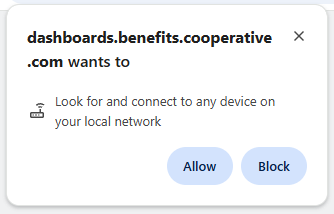
If a user inadvertently clicked “block” and does not wish to block the site, they should click the icon at the left end of the web URL address bar. In Chrome this is a tune icon. In Edge, it is a padlock icon.
- Navigate to the local network access in the drop-down that displays.
- Click the toggle to change the permission from “Block” back to “Allow”.
- Reload the page. The site should now be accessible.
Once users have provided access to unique sites or URLs, they should not be prompted again unless they clear their browser cache.
For additional information, view Chrome’s Developer Summary or Microsoft’s summary for Edge.